
Imagine if every time you visited a website, your browser had to download all of the website’s files, images, and scripts from scratch. Sounds time-consuming, right? This is where browser caching comes into play. Browser caching is a process that allows your browser to store certain files from a website on your computer or device, so that the next time you visit that website, your browser can retrieve those files from your local storage instead of downloading them again. This functionality can greatly improve the speed and performance of a website, making for a better user experience. For WordPress users, there are several plugins available that can help implement browser caching on your website. In this blog post, we will explore the workings of browser caching, and recommend some of the best WordPress plugins to help you effectively implement it on your site.
Key Takeaways:
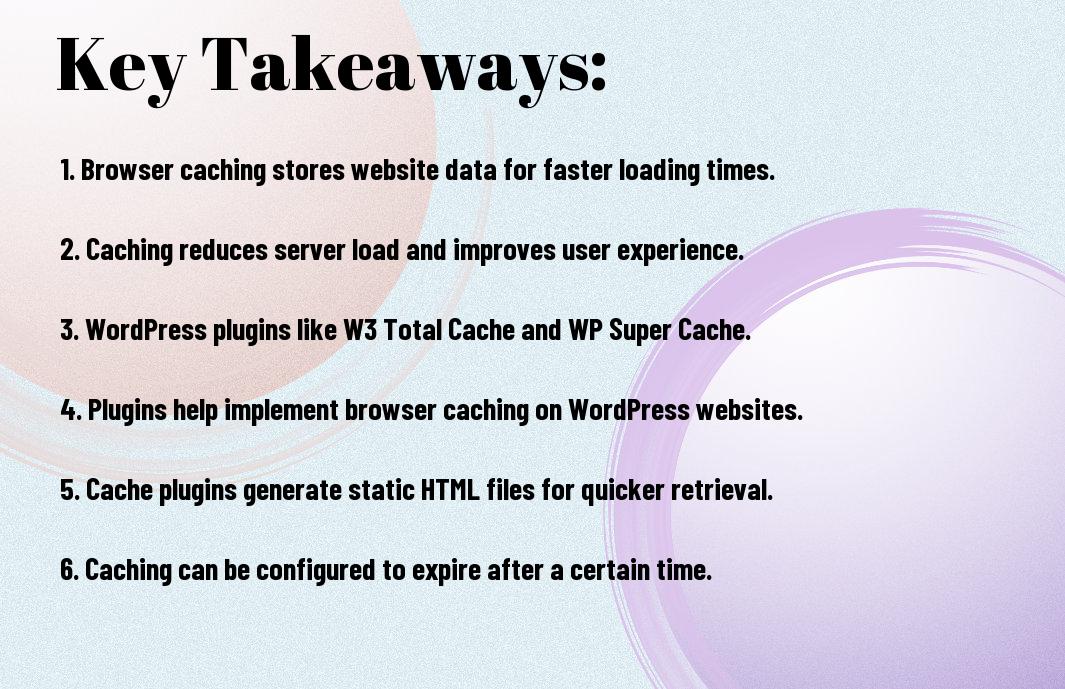
- Browser caching is a process where a web browser stores resources from a website on a user’s computer, allowing for quicker loading times and improved performance.
- Implementing browser caching in WordPress can be achieved through various plugins such as W3 Total Cache, WP Super Cache, and WP Rocket, which help optimize website speed by caching static files and reducing server load.
- Utilizing browser caching with WordPress plugins can greatly improve user experience, SEO rankings, and overall website performance.
Fundamentals of Browser Caching
Clearly, understanding the fundamentals of browser caching is crucial for optimizing the performance of your WordPress website. When a visitor accesses your website, their browser stores static files such as HTML, CSS, and JavaScript locally. This enables the browser to load the website more quickly upon subsequent visits, as it doesn’t need to repeatedly download these files from the server. To learn more about how to implement browser caching in WordPress, check out our article on How to Leverage Browser Caching in WordPress (Step-by-… .
How Browser Caching Operates
Operates by instructing the visitor’s browser to store static files for a specified period. When the visitor returns to your website, their browser checks if these files have expired. If not, the browser retrieves the files from its local cache, resulting in a faster loading time. This process reduces the amount of data that needs to be transferred between the server and the browser, leading to improved website performance.
Benefits of Using Browser Caching
Fundamentally, using browser caching brings several benefits to your website. It can lead to a significant reduction in page load times, resulting in a better user experience and potentially higher search engine rankings. Additionally, it helps to lower the amount of server resources needed to fulfill requests from visitors’ browsers, which can positively impact website scalability and overall performance.
A well-implemented browser caching strategy can also contribute to boosting website conversion rates, reducing bounce rates, and improving overall user satisfaction. By leveraging browser caching, you can provide a faster and more efficient browsing experience for your visitors, leading to higher engagement and potentially increased revenue.
Browser Caching and WordPress Performance
To improve the performance of your WordPress website, it is essential to understand the role of browser caching and how it can benefit your site’s speed and user experience.
The Impact on Site Loading Speed
Caching is the process of storing frequently accessed data in the browser’s local memory. When a user visits a website, the browser can retrieve the cached data locally, reducing the need to request information from the server again. This results in a significant improvement in site loading speed, as the browser does not have to download all the resources again, such as images, CSS, and JavaScript files. This can lead to dramatic reductions in page load times, especially for returning visitors.
User Experience Enhancement
One of the main benefits of browser caching is the enhancement of user experience. With faster page load times, visitors are more likely to stay on your site and engage with your content. This can lead to lower bounce rates and increased user satisfaction, ultimately contributing to a more successful website.
A well-implemented caching strategy can also have positive effects on search engine rankings, as site speed is a known ranking factor for search engines like Google. By improving the speed and performance of your WordPress site through browser caching, you can potentially improve your SEO and attract more organic traffic.
Implementing Browser Caching in WordPress
Despite many website owners recognizing the importance of browser caching, not all understand how to implement it effectively. By configuring browser caching, you can significantly reduce your website’s loading times and improve the overall user experience. For a detailed guide on how to leverage browser caching in WordPress for speed, check out How To Leverage Browser Caching in WordPress for Speed.
WordPress Caching Plugins Overview
On the WordPress platform, there are several caching plugins available that can help you implement browser caching effectively. These plugins offer a range of features, including cache preloading, HTML, CSS, and JavaScript minification, and CDN integration. Some popular caching plugins for WordPress include W3 Total Cache, WP Super Cache, and WP Rocket.
Step-by-Step Guide to Configuring Popular Caching Plugins
Implementing browser caching in WordPress can be done effectively using popular caching plugins. Below is a breakdown of how to configure two of the most widely used caching plugins: W3 Total Cache and WP Rocket.
| W3 Total Cache | WP Rocket |
| Configure browser caching settings | Enable the “Enable caching for mobile devices” option |
| Set up minification and combine settings | Configure the CDN integration |
Plugins such as W3 Total Cache and WP Rocket provide comprehensive options for setting up browser caching and other performance optimization features, making them a valuable asset for website owners looking to improve loading times and user experience.
Advanced Considerations
Keep in mind that browser caching is a powerful tool for optimizing your website’s performance, but it also comes with advanced considerations that you should be aware of. Here are some key points to keep in mind:
- Browser caching can impact user experience by reducing load times and server load.
- For a detailed explanation of how browser caching works, check out How does the browser cache work? – Pressidium.
- Proper implementation of browser caching requires careful consideration of caching headers, expiration times, and cache purging.
Troubleshooting Common Issues
The most common issue when implementing browser caching is compatibility with certain plugins and themes. This can lead to unexpected behavior and performance issues. It’s important to carefully test your caching setup and monitor website performance to identify and resolve any issues that may arise.
Best Practices for Browser Caching Settings
Caching settings play a crucial role in the effectiveness of browser caching. It’s important to configure caching headers and expiration times to strike a balance between performance and freshness of content. Regularly reviewing and updating these settings can help ensure optimal performance for your website.
Issues such as compatibility with plugins and themes, server load, and website performance should be carefully considered when configuring browser caching settings.
The Importance of Browser Caching and WordPress Plugins
The implementation of browser caching is crucial for optimizing website performance and improving user experience. By reducing load times and server requests, caching allows for faster page load times and a smoother browsing experience. WordPress offers a variety of plugins that can help website owners easily implement browser caching, such as WP Super Cache, W3 Total Cache, and WP Rocket. These plugins can automatically generate and update cache files, set expiration times, and manage the caching process to ensure optimal performance. By utilizing these plugins, website owners can ensure that their sites are running efficiently and providing the best experience for their visitors.
FAQ
Q: What is browser caching and how does it work?
A: Browser caching is the process of storing web page files in a user’s local cache, allowing the browser to quickly load the page on subsequent visits. When a user first visits a website, the browser downloads the page’s files, including images, JavaScript, and CSS, and stores them in a local cache. The next time the user visits the same page, the browser can retrieve the files from the cache instead of re-downloading them, resulting in faster load times.
Q: Why is browser caching important for WordPress websites?
A: Browser caching is important for WordPress websites because it significantly improves page load times and user experience. Faster load times can lead to higher search engine rankings, lower bounce rates, and increased user engagement. Additionally, browser caching can reduce server load and bandwidth usage by minimizing the number of requests made to the server for the same files.
Q: Which WordPress plugins can help implement browser caching?
A: There are several WordPress plugins that can help implement browser caching, including W3 Total Cache, WP Super Cache, and WP Rocket. These plugins allow you to easily configure browser caching settings, such as expiration times for different types of files, and enable compression to further optimize website performance.
Q: What are the benefits of using a WordPress caching plugin?
A: Using a WordPress caching plugin can provide numerous benefits, including improved page load times, reduced server load, and enhanced user experience. These plugins can also help optimize website performance by minifying CSS and JavaScript, enabling browser caching, and implementing other caching techniques to speed up page rendering.
Q: How can I check if browser caching is working on my WordPress site?
A: You can check if browser caching is working on your WordPress site by using browser developer tools, such as the Network tab in Google Chrome’s DevTools. When you inspect the requests for your website’s files, you should see headers indicating whether browser caching is enabled and the expiration times for cached files. Additionally, there are online tools and browser extensions that can analyze your website’s caching headers and provide insights into its caching performance.