In today’s digital age, it is imperative for website owners to ensure that their WordPress sites are running at optimal performance levels. One of the most effective ways to achieve this is by utilizing a cache plugin. However, simply installing a cache plugin is not enough. It is crucial to properly configure the plugin to ensure that it is delivering the highest level of performance enhancement possible. In this blog post, we will discuss the essential steps and settings necessary to optimize your WordPress cache plugin for maximum efficiency. Whether you’re a seasoned website developer or a novice blogger, this post will provide you with the necessary knowledge to enhance the performance of your WordPress website.
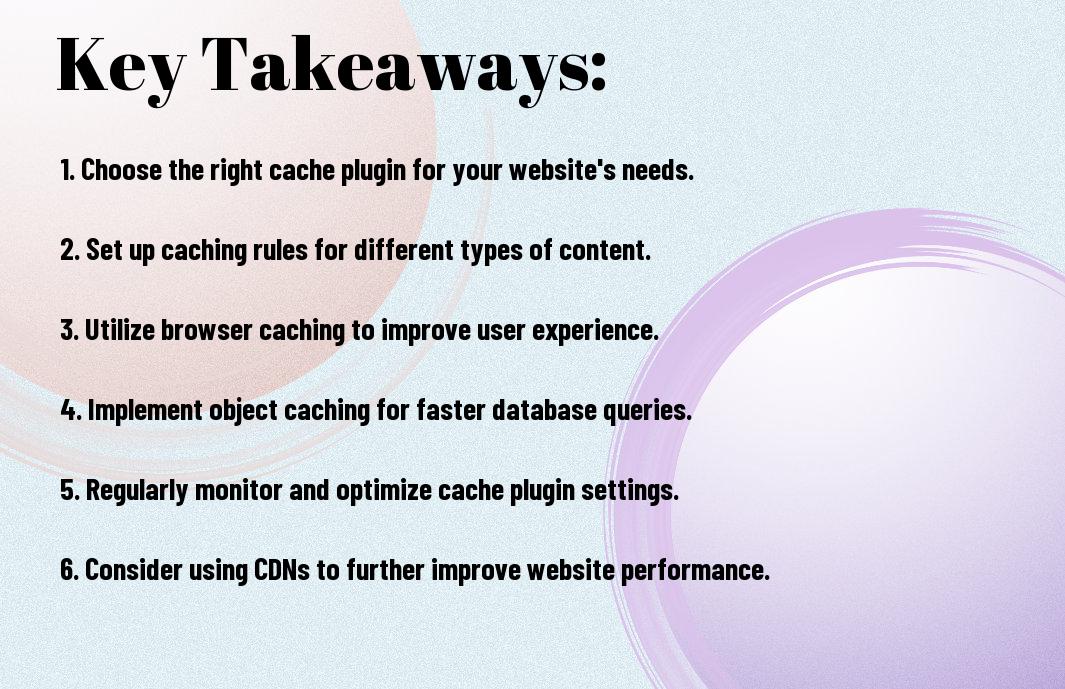
Key Takeaways:
- Choose the Right Cache Plugin: Not all cache plugins are created equal, so it’s important to research and choose the one that best suits your website’s needs and goals.
- Enable Caching for Static Files: To maximize performance, configure your cache plugin to cache static files such as images, CSS, and JavaScript to reduce load times and improve user experience.
- Regular Maintenance and Testing: Keep your cache plugin updated and regularly test its performance to ensure it’s functioning optimally and providing the desired results for your website.
Choosing the Right Cache Plugin
Some of the most important decisions you will make for your WordPress website involve choosing the right cache plugin. The right cache plugin can significantly improve your website’s performance, while the wrong one can cause more harm than good. For a comprehensive guide to optimizing the performance of your WordPress website, check out 2024 Ultimate Guide to Optimizing WordPress Performance.
Popular WordPress Cache Plugins
WordPress offers a wide variety of cache plugins to choose from, each with its own set of features and benefits. Some of the most popular cache plugins include WP Super Cache, W3 Total Cache, and WP Rocket. These plugins are known for their ability to improve website speed and performance by caching files and reducing server load.
Evaluating Your Website Needs
Cache plugins are designed to improve website performance and speed, but not all websites have the same needs. When evaluating your website’s needs, consider factors such as the size of your website, the number of visitors it receives, and the type of content it hosts. Understanding these factors will help you determine which cache plugin is most suitable for your website.
Plugins such as WP Super Cache and W3 Total Cache are well-suited for larger websites with high traffic volume, while WP Rocket is preferred for its user-friendly interface and ease of use. It’s important to carefully evaluate your website’s needs in order to choose the right cache plugin for optimal performance.
Installation and Basic Configuration
Now that you have selected the best WordPress cache plugin for your site, it’s time to install and configure it for optimal performance. In this chapter, we will guide you through the installation process and help you set up the basic caching settings to improve your site speed and user experience.
Installing Your Selected Cache Plugins
Installation of your chosen cache plugin is a straightforward process. Simply navigate to your WordPress dashboard, click on “Plugins” and then “Add New.” Search for your selected cache plugin, install it, and activate it. If you need more detailed instructions, check out our tutorial on Eight Ways to Optimize Your WordPress Site’s Performance.
Once your cache plugin is installed, take the time to review the settings and make any necessary adjustments to ensure it is tailored to your site’s specific needs. This will set a solid foundation for your website’s caching system, helping to improve performance and user experience.
Configuring Basic Caching Settings
Your cache plugin will come with a range of basic caching settings that can be configured to enhance your site’s performance. Start by enabling the caching system and setting the cache lifespan. This will determine how long your site’s content is stored in the cache before it is refreshed.
Plugin also allows you to specify which types of content should be cached, such as pages, posts, and media files. You can also configure options for minification and browser caching, which can further improve your site’s load times and overall performance.
Configuring these basic caching settings is crucial in maximizing the benefits of your cache plugin. Taking the time to fine-tune these options will ensure that your site is delivering content to your visitors quickly and efficiently, ultimately improving user experience and search engine rankings.
Advanced Cache Settings for Performance
After configuring the basic cache settings for your WordPress plugins, you can further optimize the performance of your website by delving into the advanced cache settings. These settings allow you to fine-tune the caching process, resulting in improved speed and user experience.
| Fine-Tuning Cache Expiration | Configuring Object and Database Caching |
Fine-Tuning Cache Expiration
Cache expiration refers to the duration for which cached data and files are considered valid before they need to be refreshed. By fine-tuning the cache expiration settings, you can ensure that your website serves the most up-to-date content to your visitors while maintaining optimal performance. It is important to strike a balance between a longer cache expiration to reduce server load and a shorter expiration to display the most recent content.
Configuring Object and Database Caching
Any well-optimized WordPress cache plugin allows for the configuration of object and database caching. This feature enhances performance by storing frequently accessed database queries and objects in a cache, reducing the need for repeated database requests. By configuring object and database caching, you can significantly improve the speed at which your website delivers dynamic content to your visitors.
Expiration of object and database cache entries should be carefully managed to ensure that stale data is not served to visitors. Balancing the duration of cache expiration with the frequency of content updates is crucial in maintaining a fast and reliable website performance.
By fine-tuning the cache expiration settings, you can ensure that your website serves the most up-to-date content to your visitors while maintaining optimal performance. Configuring object and database caching enhances performance by storing frequently accessed database queries and objects in a cache, reducing the need for repeated database requests.
Additional Performance Considerations
Your WordPress cache plugin is an essential tool for optimizing your website’s performance, but there are additional considerations to take into account to ensure your site is running at its best. In this chapter, we’ll cover some additional performance considerations that can further enhance your website’s speed and efficiency.
Enabling Content Delivery Network (CDN) Support
For even faster load times and improved performance, consider enabling support for a Content Delivery Network (CDN). A CDN distributes your website’s static files, such as images, stylesheets, and JavaScript, across a network of servers located around the world. This allows for quicker access to these files, as they can be served from servers closer to your website’s visitors, resulting in reduced load times and improved overall performance.
Minifying JS and CSS Files
Delivery all your JavaScript (JS) and Cascading Style Sheets (CSS) files in a minified, compressed format can significantly reduce load times and improve website performance. Minifying involves removing unnecessary characters and whitespace from these files, resulting in smaller file sizes and faster load times. Enabling minification in your cache plugin can help optimize your site’s speed and performance, ultimately providing a better experience for your visitors.
Enabling minification and compression for your JS and CSS files can not only improve your website’s speed, but also positively impact your SEO efforts. By reducing file sizes, you can help your website load faster, which is a known ranking factor for search engines. However, it’s important to carefully test and monitor your site after enabling minification to ensure that it doesn’t cause any compatibility issues with your plugins or themes.
Monitoring and Maintaining Cache Efficiency
Keep a close eye on the efficiency of your cache plugins to ensure that they are delivering optimal performance for your WordPress websites. Monitoring and maintaining cache efficiency is crucial for a smooth and fast user experience, as well as for improving the overall search engine ranking of your websites.
Analyzing Cache Performance
Maintaining a regular analysis of your cache performance is essential to identify any potential issues or bottlenecks that may be affecting the speed and responsiveness of your websites. Use tools and plugins to analyze cache hits, misses, and caching time to identify areas for improvement. Regularly analyzing cache performance will help you make informed decisions to optimize cache settings and improve overall website performance.
Regular Cache Maintenance Practices
One of the most important regular cache maintenance practices is to regularly clear outdated or unnecessary cached files to prevent them from taking up valuable server space. The regular clean-up of cache files also helps in reducing the risk of serving outdated content to your website visitors, improving their overall experience and increasing the search engine ranking of your websites.
The regular monitoring and maintenance of cache efficiency are crucial for maintaining the optimal performance of your WordPress websites. By analyzing cache performance and implementing regular maintenance practices, you can ensure that your cache plugins are delivering the best possible performance for your websites, boosting their speed and reliability.

Summing up
Configuring your WordPress cache plugin for optimal performance is crucial in ensuring that your website runs smoothly and efficiently. By following the steps outlined in this guide, you can maximize the performance of your cache plugin and improve your website’s loading speed. Remember to regularly review and update your cache settings to keep up with any changes in your website’s content and traffic. With the right configuration, you can provide your visitors with a seamless and fast user experience, ultimately leading to increased engagement and satisfaction. Take the time to fine-tune your cache plugin settings, and you will see the positive impact it can have on your website’s overall performance.
FAQ
Q: Why is configuring a WordPress cache plugin important for optimal performance?
A: Configuring a WordPress cache plugin is important for optimal performance because it helps speed up your website by storing a static version of the site and delivering it to your visitors, reducing the load on the server and improving user experience.
Q: What are the recommended cache plugins for WordPress?
A: Some popular cache plugins for WordPress include W3 Total Cache, WP Super Cache, and WP Rocket. These plugins offer various features for improving website performance through caching and optimization.
Q: How can I configure my WordPress cache plugin for optimal performance?
A: To configure your WordPress cache plugin for optimal performance, you should start by enabling basic caching options such as page caching, browser caching, and database caching. Additionally, you can fine-tune advanced settings based on your website’s specific needs.
Q: What are the potential drawbacks of incorrectly configuring a cache plugin?
A: Incorrectly configuring a cache plugin may lead to issues such as broken functionality, outdated content being served to users, or conflicts with other plugins or themes. It’s important to carefully test and monitor the impact of any configuration changes.
Q: How often should I review and update my cache plugin configuration?
A: It is advisable to review and update your cache plugin configuration whenever you make significant changes to your website, such as installing new plugins, updating themes, or modifying content. Regularly monitoring and optimizing your cache settings can help ensure optimal performance over time.